What is your developer-dependent CMS actually costing you? Calculate your costs and get a full report


User Management
Password Management
Change your password while signed in, or reset it if you cannot sign in at all.
This article covers changing your password when you are signed in, and resetting it when you cannot sign in at all.
Change your password
1. Click your profile picture in the top right corner.
2. Click View Profile.
3. Click Change Password.

An email is sent to your account with a link to verify it is you. Follow the instructions in that email to set your new password.
Reset your password
If you cannot sign in because you have forgotten your password, click Forgot Password on the login screen.
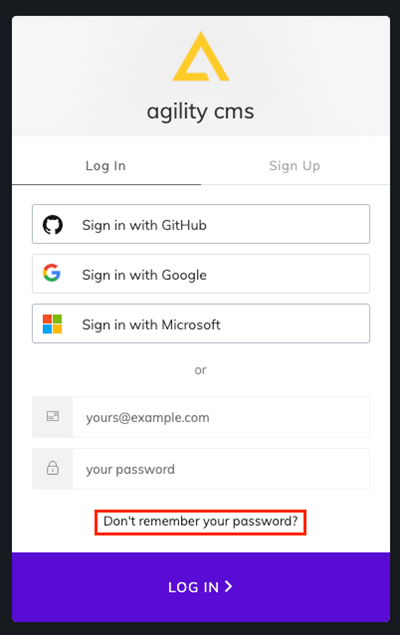
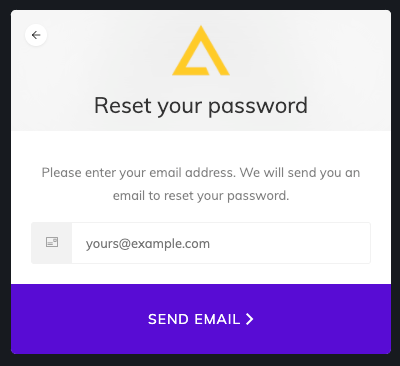
Enter the email address you normally use to sign in to Agility, then click Reset Password.
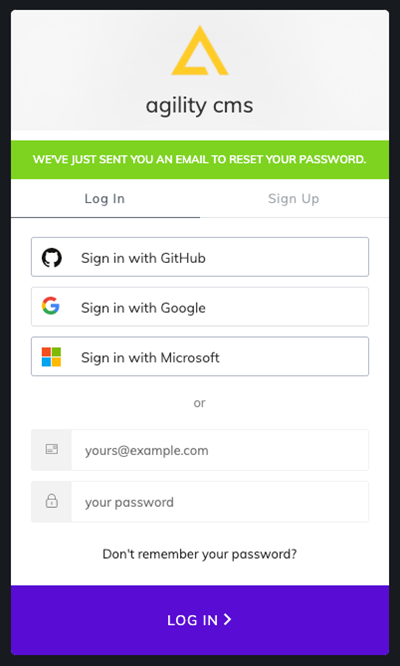
You will be told that an email has been sent to reset your password.
In a few moments you should receive a message with the subject Recover Your Password for the Agility Content Manager. Click the password reset link in that email.
Enter your new password, enter it again in the Confirm Password field, then click Change Password.
Having trouble with your Email or Password?
If you are having trouble with your Email or Password, email support@agilitycms.com.
On this page