What is your developer-dependent CMS actually costing you? Calculate your costs and get a full report


Editors
Navigating the Agility CMS Interface
This guide explains how to navigate the Agility CMS interface. The interface structure is consistent across all Agility CMS instances.
This guide explains how to navigate the Agility CMS interface. The interface structure is consistent across all Agility CMS instances.
Main Navigation Areas
Agility's navigation has two parts: the header navigation across the top of the app, and the rail panel at the side. Both were redesigned in August 2026 for a cleaner, more organized layout, so if you learned Agility before then, some controls may be in a different place.
From the navigation you can reach these key areas:
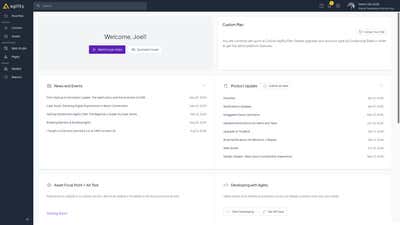
The Agility CMS dashboard provides an overview of your content and quick access to key sections.
Main Sections
- Pages - Manage your website's page structure and content
- Content - Create and manage reusable content items
- Assets - Upload and organize media files
- Web Studio - Preview your content before publishing
Dashboard Overview
The dashboard provides quick access to:
- Recent pages and content items
- Publishing status
- Quick actions for common tasks
Content Section Navigation
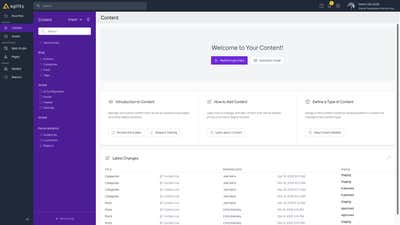
The Content section is where you manage reusable content items.
Content Lists
Content items are organized into Content Lists. Each content list contains items of a specific type (e.g., "Posts", "Authors", "Testimonials").
How to navigate:
- Click Content in the main navigation
- You'll see your content lists in the sidebar, sorted into groups, with any you've favorited in a Favorites group at the top. See Organizing Content with Groups.
- Click on a content list to view its items
- Click on an item to edit it
Once you're in a content item, you can go straight to the next or previous item in the list without going back to the list first. See Work Faster in Agility.
Content List Features
- Search: Use the search bar to find specific items
- Filters: Filter items by various criteria
- Sort: Sort items by different fields
- Bulk Actions: Select multiple items for bulk operations
Pages Section Navigation
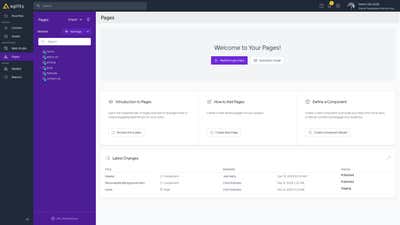
The Pages section is where you manage your site's page structure.
Sitemap View
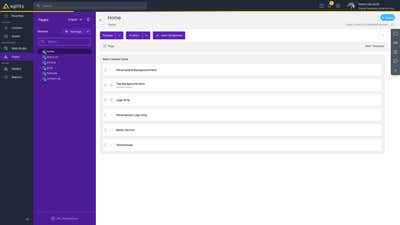
The sitemap shows your site's page hierarchy:
- Pages are organized in a tree structure
- Parent pages contain child pages
- Each page has a URL path
How to navigate:
- Click Pages in the main navigation
- Click Sitemap to view the page hierarchy
- Click on any page to edit it
Page Editor
When editing a page, you'll see:
- Content Zones: Areas where components can be added
- Components: Components already placed on the page
- Page Properties: Title, URL, metadata, etc.
Assets Section Navigation
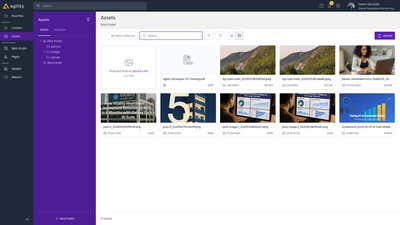
The Assets section is where you manage media files.
How to navigate:
- Click Assets in the main navigation
- Browse folders to organize files
- Upload new files or manage existing ones
Components Section Navigation
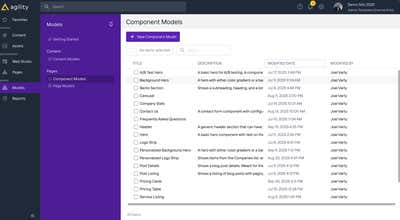
The Components section shows available component definitions.
Note: You typically work with components by adding them to pages, not by managing them directly in this section.
Side Panels and Dialogs
Content items, content lists, pages and models each have a side panel. In September 2026 these side panels were refreshed to match the new navigation. The Save button in a side panel stays disabled until you change something.
Many actions that used to open in a slide-out panel now open in a dialog (modal) instead. These include copying items, pages and components, page and content security, sitemap settings, import, export and alerts. When a dialog opens, the cursor is already in its first field, so you can start typing straight away.
URL Patterns
Agility CMS uses consistent URL patterns for navigation:
- Content List:
/content/list-{container-id} - Content Item:
/content/list-{container-id}/listitem-{content-id} - Page:
/pages/page-{page-id} - Component on Page:
/pages/page-{page-id}/item-{container-id} - Assets:
/media/folder-{folder-id}
Search Functionality
Agility CMS includes a global search feature:
- Use the search bar at the top of the interface
- Search across content items, pages, and assets
- Filter results by type
Keyboard Shortcuts
Common keyboard shortcuts:
- Use Tab to navigate between fields
- Use Enter to save
- Use Escape to cancel or close dialogs
Work Faster
Favorites, next and previous item, search in the page picker and the sync status indicator all save time once you know the basics. See Work Faster in Agility.
Next: Content Basics - Creating and managing content items
On this page