What is your developer-dependent CMS actually costing you? Calculate your costs and get a full report


Introduction
Content Search
Find your content quickly within the CMS.
What is the Content Search feature?
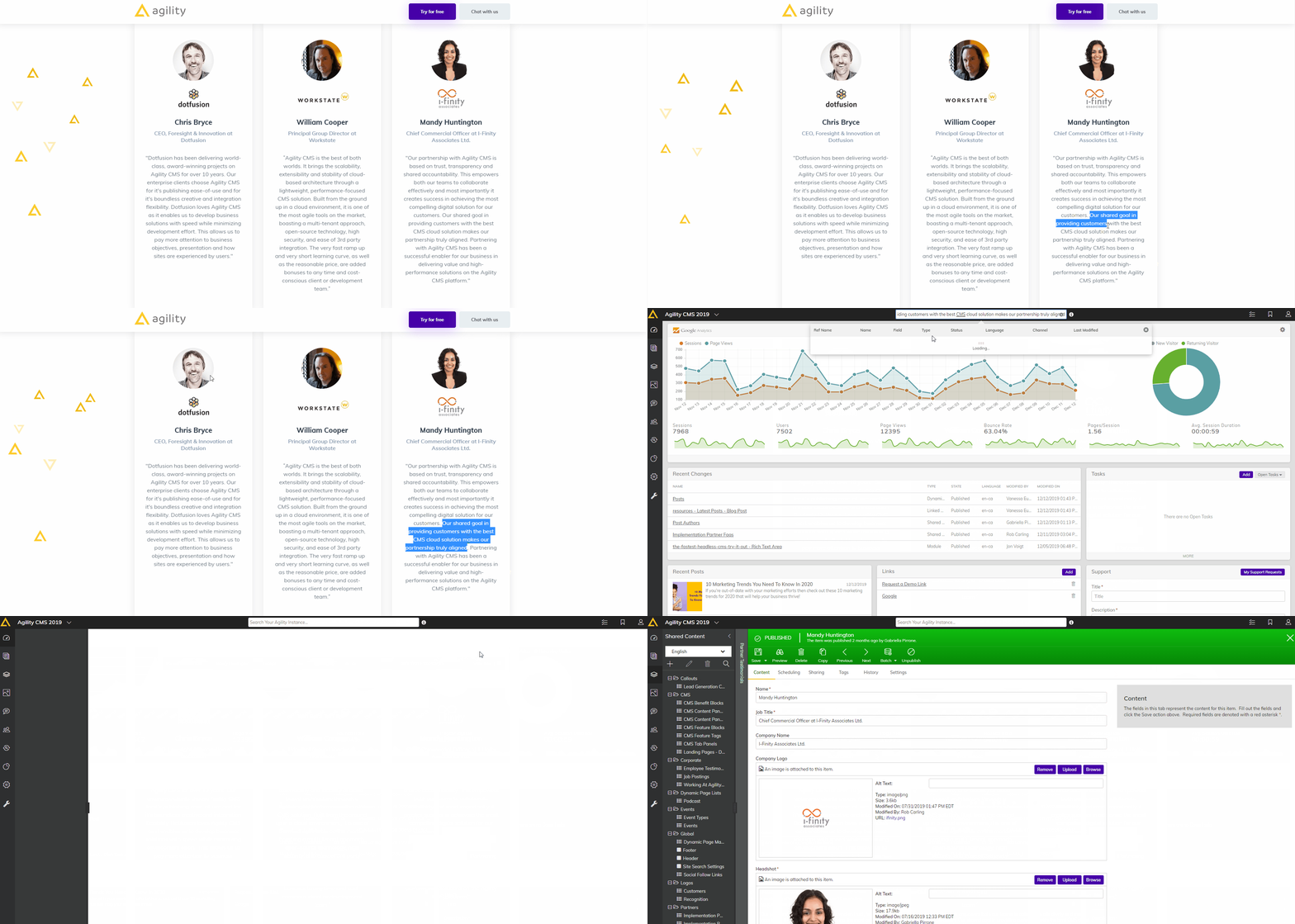
Agility includes a powerful Content Search feature that allows users to search within Content, Pages and Assets for your specified search term.
When would I use it?
- You have content you need to change in Agility but can’t remember exactly where it’s located
- You have specific content or wording that needs to be changed across the site
- You want to review content for accuracy across your site's pages for things like SEO keywords or meta descriptions
How does it work?
You can search for any value that you expect to exist in your content. Results will be shown in order of relevancy and will be displayed in a tabbed pop-up panel where you can filter the results by All, Content, Pages, Components, Assets, Models or Settings.

Once you find what you’re looking for you can click the item to be taken directly to it!
Agility provides a powerful Content Search feature which allows users in Agility to search for field values used in Content, Pages, and Page Modules for the occurrence of a specific search term.

Select an Image
Common Use Cases
While there can be many reasons you may search for content, here are a few common use cases:
- You have some content you want to change, but don't know exactly where (or if) it is in the CMS.
- You have specific content that needs to be replaced across the site.
- You want to review content for accuracies such as SEO keywords and meta descriptions across pages.
Select an Image
How it Works
Your search term should be a value that you expect to exist in a field value in your content. This could be in a Content Item, a Page Module within a Page, or a Pages Properties itself (i.e. SEO fields).
Results are returned in order of search relevancy, and can then be further filtered or sorted in the Content Search Report by clicking the View All Results link.

Select an Image
This will take you to the Content Search Report page:

Select an Image
Here, you can further filter results, by typing a value into the filter input:

Select an Image
You can also sort the results by clicking on the appropriate Column name, and toggle the ascending/descending directional arrows.
Once you've identified an item you should like to navigate to, you may click View Item to go directly to the item. Or, click the New Window icon to open that item in a new tab. This can be very when you need to make changes to multiple items.
Column Reference Guide
Ref Name - This is the reference name of the matched content. If it is a Content Item or Page Module, then this represents the content's Reference Name. If it is a Page, then this is the name/URL slug of the page.
Name - This is a friendly name of the matched content. If it is a Content Item or Page Module and they have a field called Title, then that field value will be displayed here.
Field - This is the field name that the content was found in. Please note that the field label which shows in the Content Manager may not be exactly the same as the field name.
Type - The type of content that was matched. Possible values include List Item, Content Item, Page Module, and Page.
Status - The current status of the matched item. Possible values include Published, Staging, and Unpublished.
Locale - The locale that the matched item is associated with.
Sitemap - The sitemap that the Page or Page Module is associated with. List Item and Content Item results will not have a sitemap value as they are not specific to a sitemap.
Modified By - The Agility CMS user that last modified the item.
Last Modified - The timestamp of when the item was last modified.
On this page