

Introduction
Previewing in Web Studio
When creating and editing web pages, an intuitive interface and
real-time previews are key. So is a tool that lets your team preview,
comment, approve, and collaborate seamlessly, which is why we're so excited about Web Studio and Live Previews.
There are a few different levels of Web Studio depending on how it's been integrated with your site.
Out of The Box
As long as you have a preview and production environment set-up, you'll be able to see them right inside Agility (hooray for fewer tabs!).
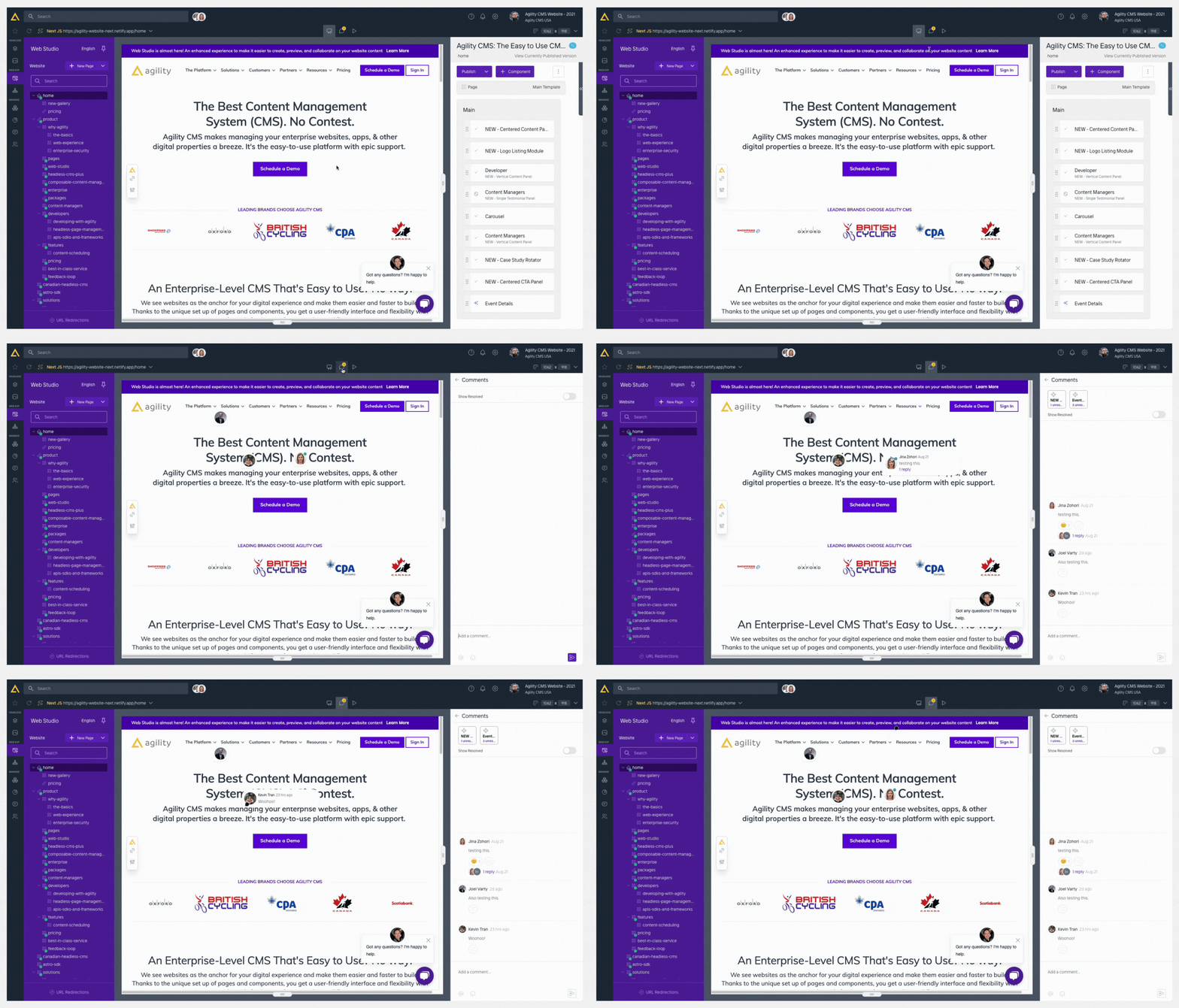
At the top of your Web Studio window you'll see a toolbar with a Preview button, a Commenting Bubble and a Play Button.
- Preview - Allows you to see how the changes you've made will look without leaving Agility (they may take some time to appear after saving depending on your individual preview environment and it may require clicking the refresh button on your web studio toolbar)
- Commenting Mode - Allows you to leave comments and have conversation on top of your preview environment for added context.
- Live Mode - Allows you to see the current live version of the item you're working on to compare.
Additional Features
Your team can unlock additional Web Studio functionality completely for free by connecting it to your site with a bit of code. You can read more details and access the technical information about that here.
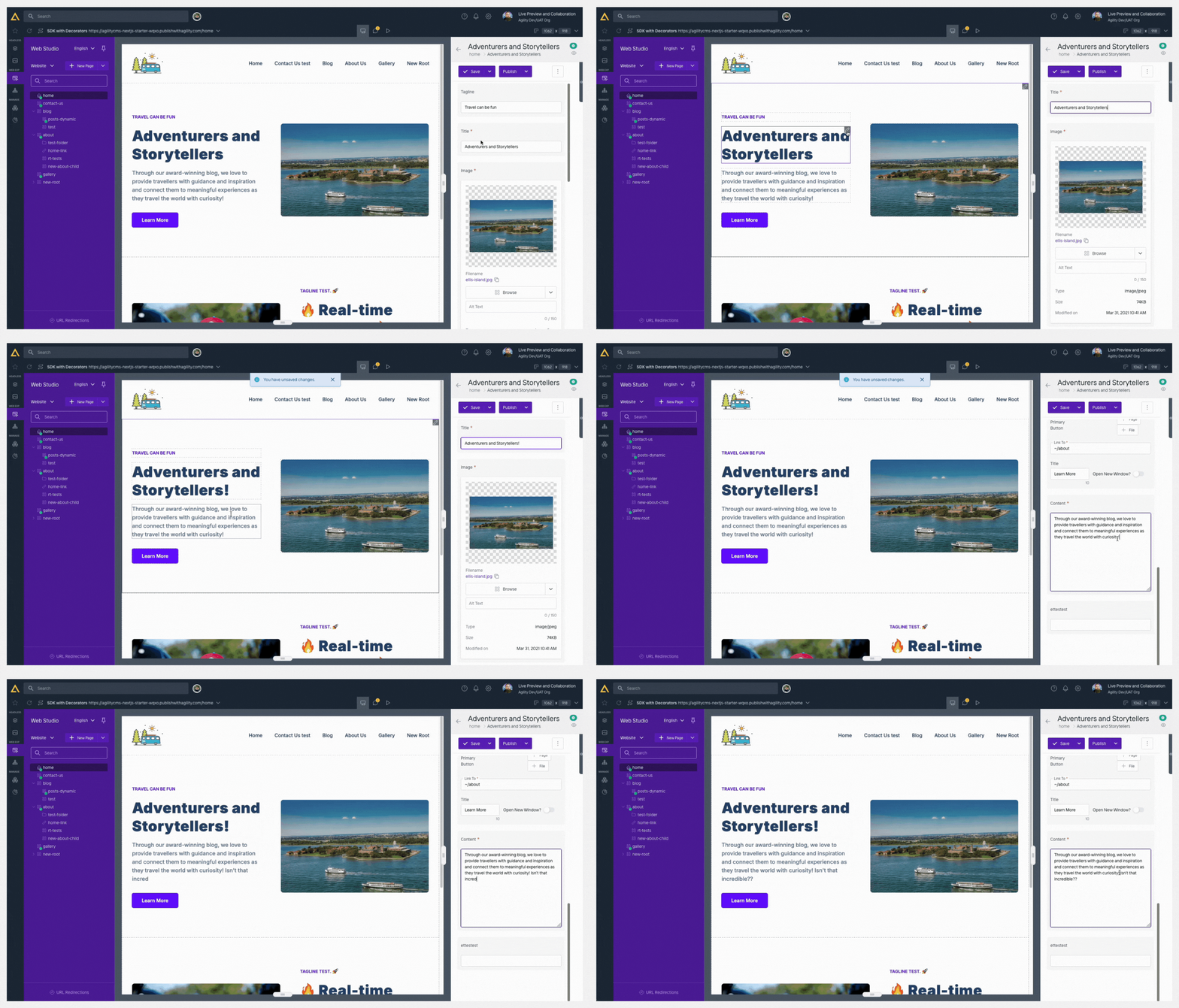
One of the most exciting aspects you can unlock is Live Previewing. Enabling this will outline each item you can edit in your Preview Window and allow you to click into them to make edits and see changes in real-time.
Encountered an Error?
When first exploring Web Studio you may receive a rrefused to connect or refused to display error with your existing Preview environment depending on how your preview environment was first set-up.
This error is related to the security settings on your site and can be resolved by a developer using the steps outlined in our Getting Started with Web Studio doc linked below.
Think that's cool? Check these out: